Share a Report
Create a link, optional password, and expiration for a full report.
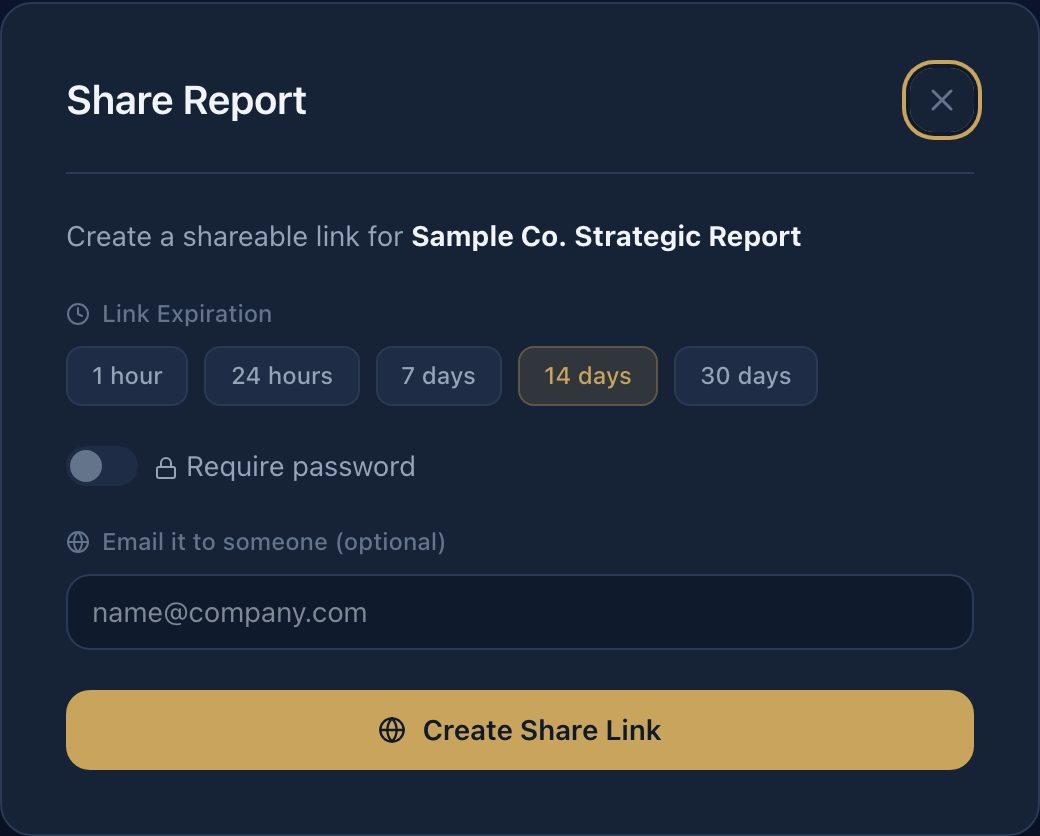
Share from the report viewer. You control password, expiration, and whether the link stays live. The sample opens the same dialog as a preview: it does not create a link or email anyone.
In this article we will cover paid sharing, why free reports stay private, and good practice.
Paid Reports
Paid (or unlocked) reports can create a public HTML share link. Set:
- Optional password
- Expiration: 1 hour, 24 hours, 7 days, 14 days (default), or 30 days
- Optional email so we notify the recipient
Here's how:
- Open a completed full report.
- Click Share in the report action bar.
- Choose expiration. Then, optionally require a password and enter a recipient email.
- Click Create Share Link.
The share link is created. You can copy it, revoke it, or create another. View counts show on each active share.
Free Reports
Free-report sharing is not currently offered. Free reports stay on the generating account. If you need to send the brief, unlock it first.
Good to Know
- Use a password when the brief is about a real company you do not own.
- Sharing discloses names and titles in the brief to that recipient. A password does not change that.
- Revoke the link when the meeting is over.
- Do not paste share URLs into public channels.
May We Suggest
We suggest the following help articles.